Import your practice from Insight Timer
Your history moves over as real entries: dates, start times, durations and activity names.
Insight Timer exports your session log as a file, and Ding reads it. Your streak, total
time and session count carry on from where you left off.
Part 1. Export the file from Insight Timer
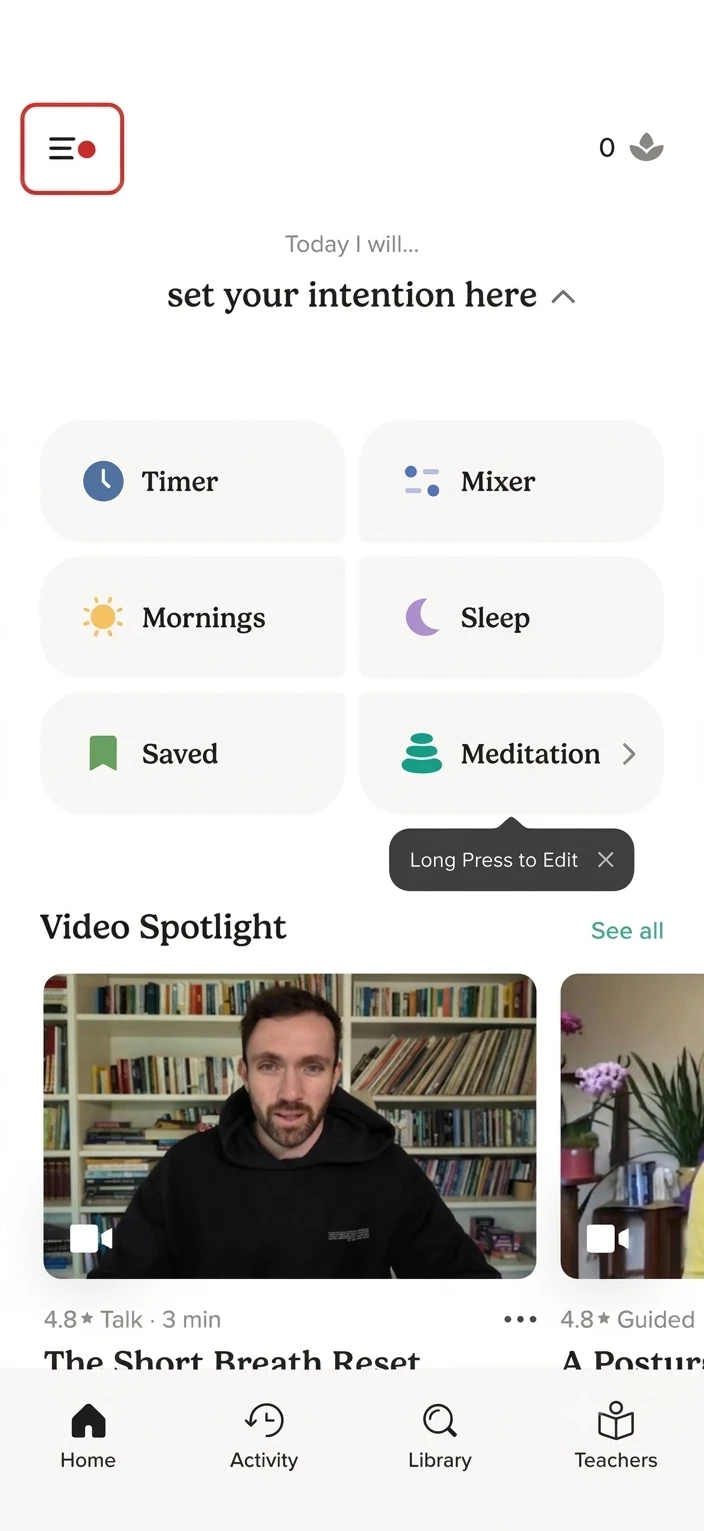
1. Open the menu
On the Insight Timer home screen — the ☰ icon in the top left.
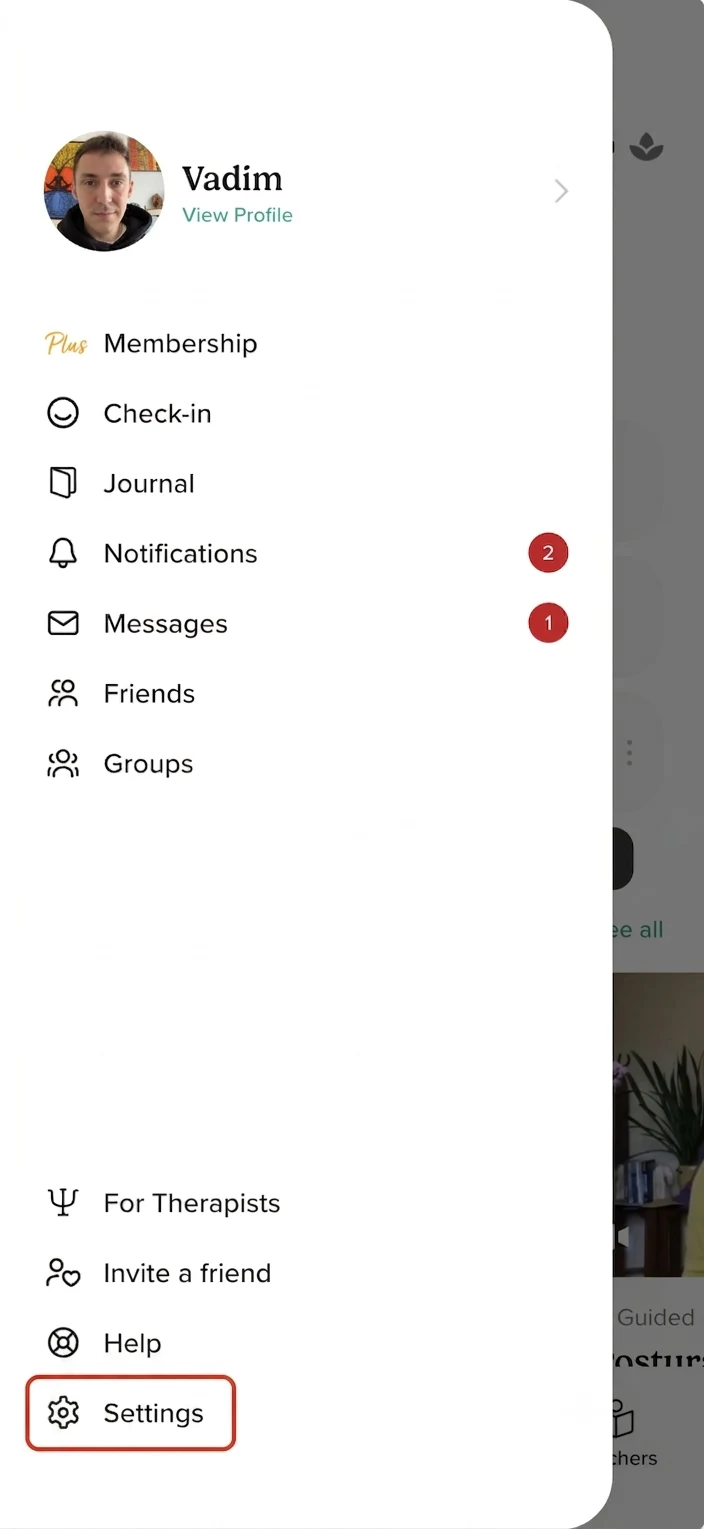
2. Settings, at the bottom
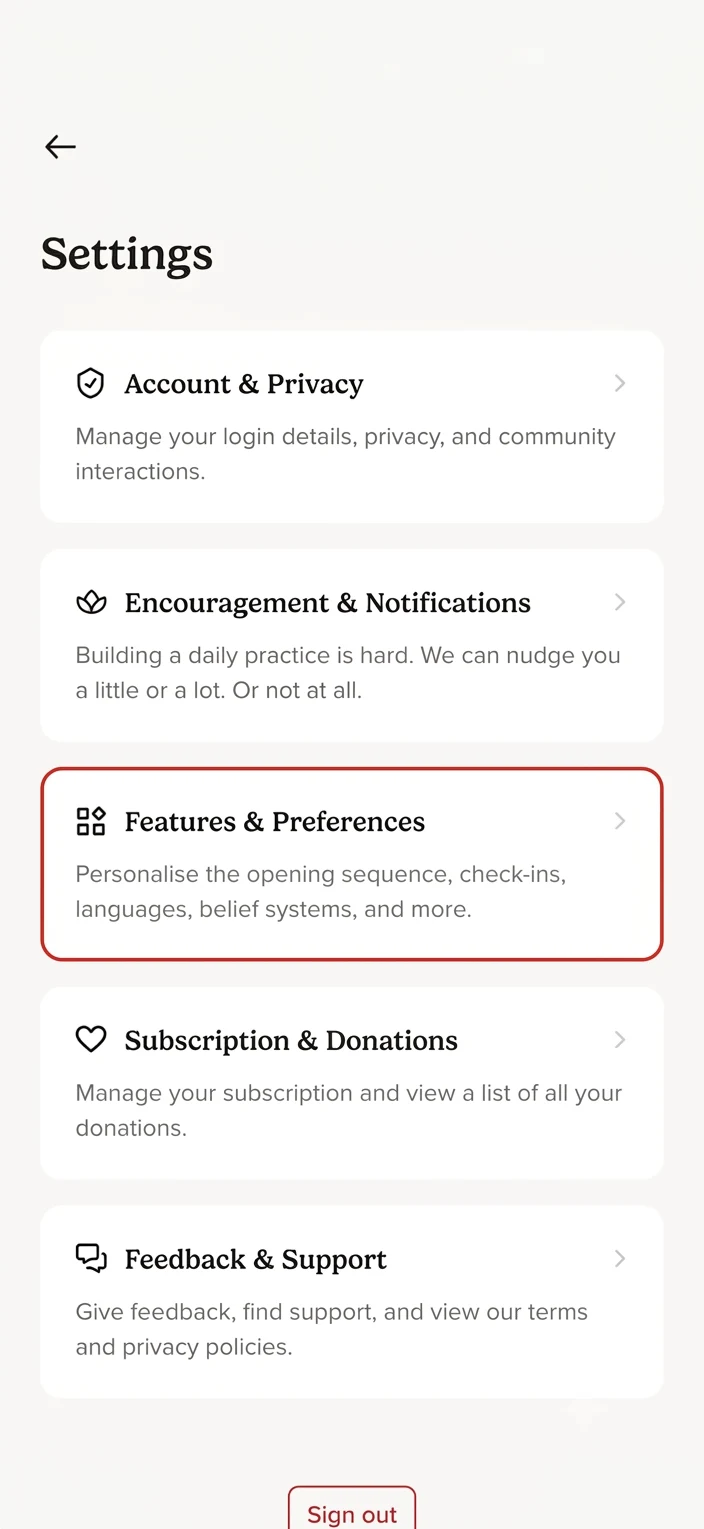
3. Features & Preferences
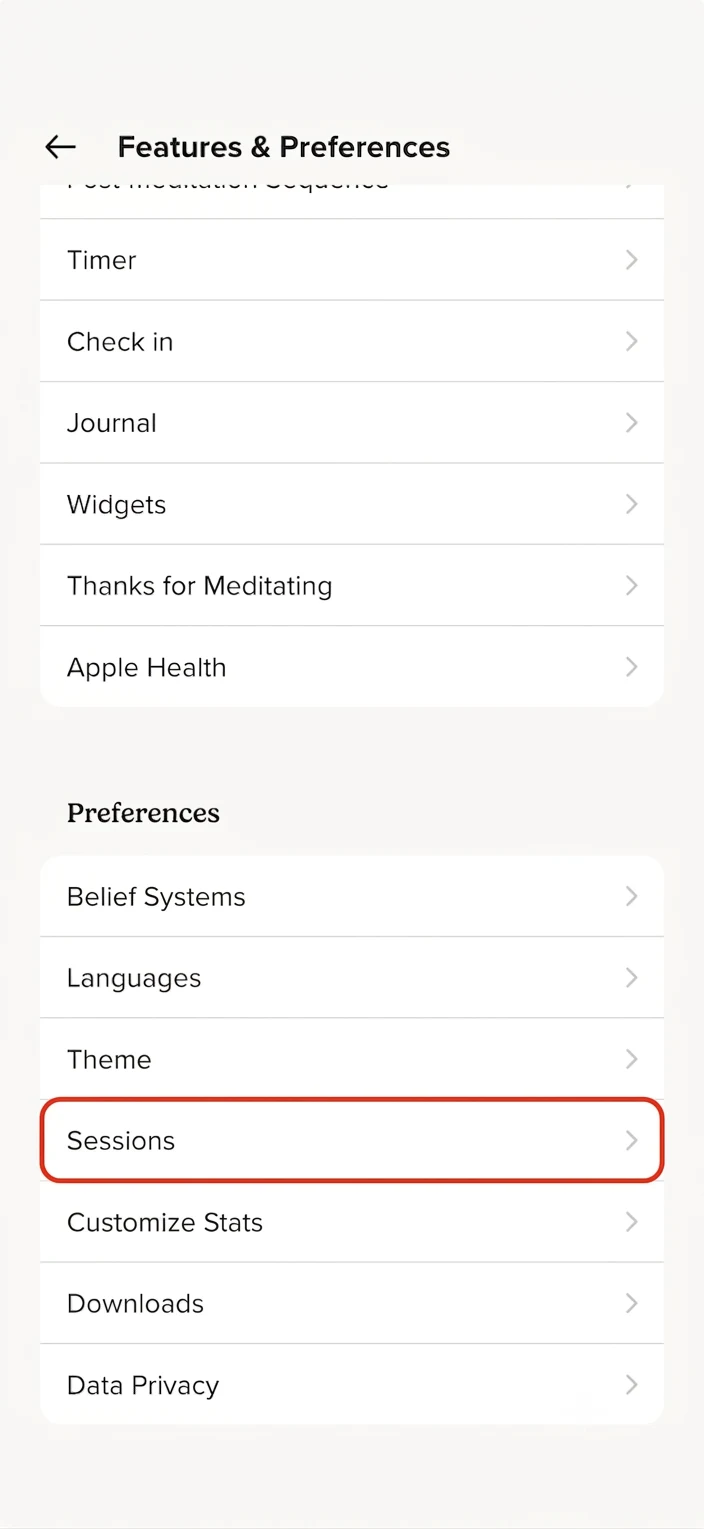
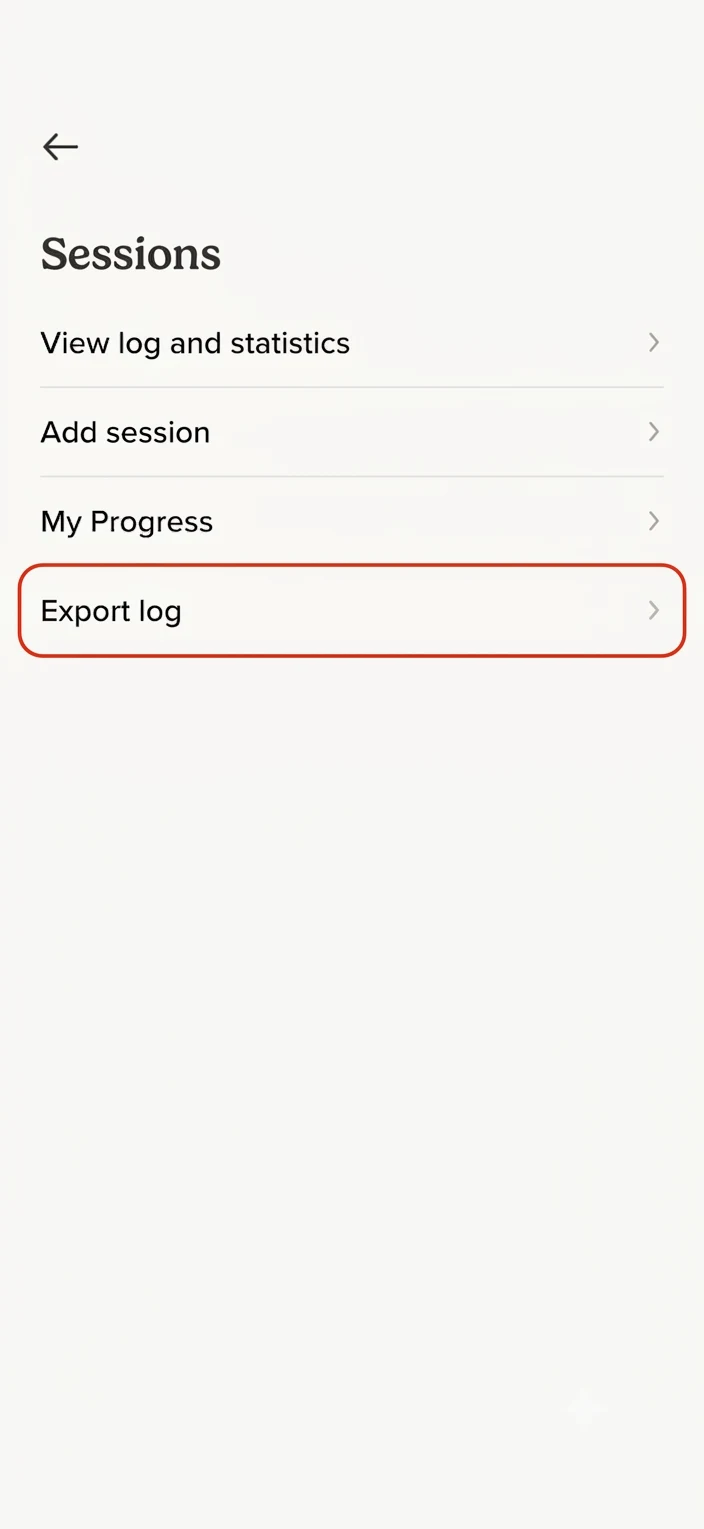
4. Scroll to Preferences, open Sessions
5. Export log
The system share sheet opens — save the .csv file to your phone
(e.g. to Downloads). Remember where you put it — you'll need it next.
Part 2. Import into Ding
- Open Practice — the calendar icon in the bottom row — and tap the
three-dot button in the top right.

- Choose Import practice.

- Find and open the exported file.

- Check the numbers against Insight Timer and tap Import.

- That's it — your history now sits in Practice next to your own sessions.

Good to know
- A fresh export continues your Insight Timer streak. If more than two days have passed since
the last session in the file, the streak starts from zero.
- Importing the same file twice is safe — matching sessions are skipped.
- Everything loaded from files can be removed with “Delete imported” in the same menu.
Sessions recorded on your device stay.
- The file is parsed on your phone: your history is never sent anywhere.
- On iPhone import on one device — the rest sync through iCloud. On Android statistics live
on the phone only, so import on each.